
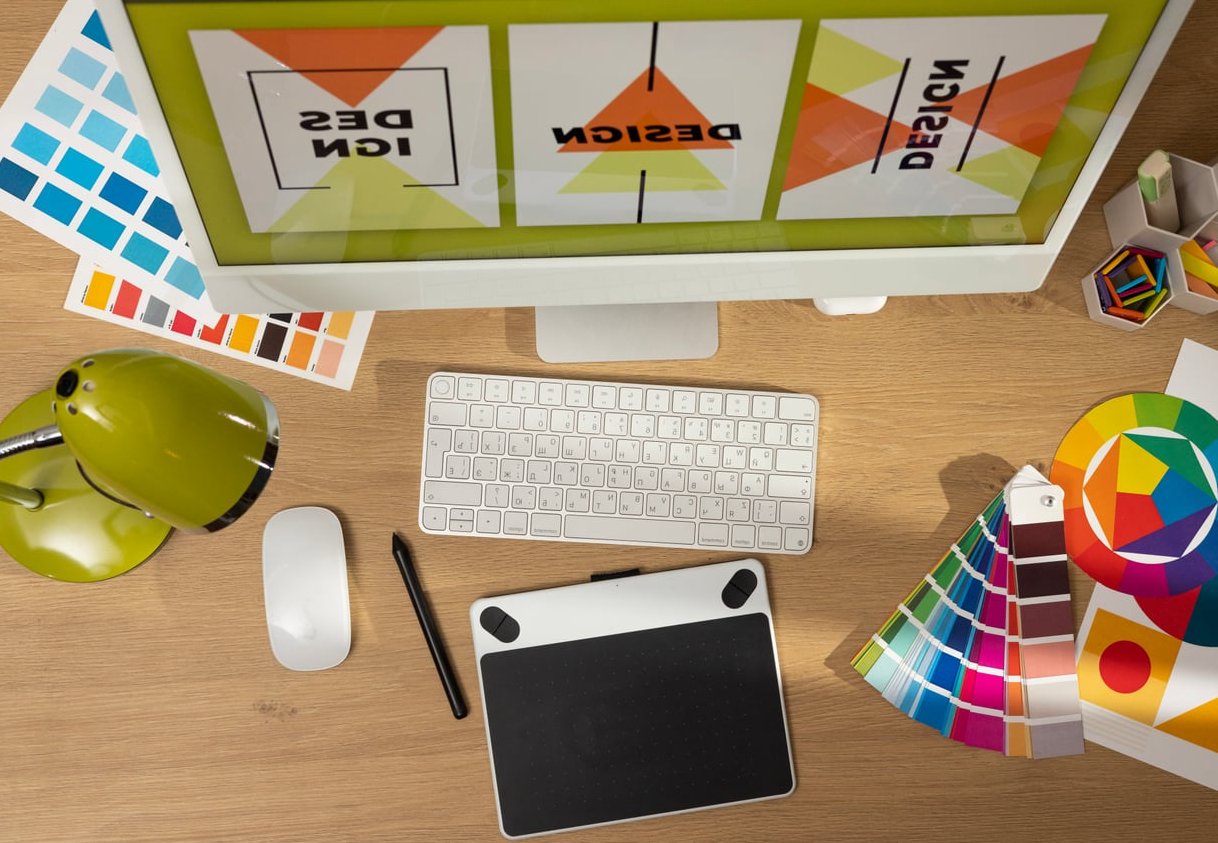
A brand identity board is the single most powerful document a designer can hand to a client. It compresses weeks of strategy, research and visual exploration into one scrollable canvas that says: this is your brand. In this guide, we are not going to talk theory. We are going to open Figma and build one together, frame by frame, exactly the way we do it at gfx-art.org when we present concepts to real clients.
What Is a Brand Identity Board (and Why Figma)?
A brand identity board, sometimes called a brand board or style board, is a visual summary of a brand’s core design system. It typically includes the logo and its variations, a color palette, typography samples, a moodboard, and supporting graphic elements like patterns, icons or photography direction.
We use Figma instead of Illustrator or InDesign because:
- Clients can comment directly on the file
- Auto Layout makes responsive presentation effortless
- Components keep logos and color tokens consistent across pages
- Sharing is one URL, no PDFs flying around
Step 1: Set Up Your Figma File
Before placing a single element, structure matters. Open a new Figma file and create the following pages in the left sidebar:
- Cover – the first thing the client sees
- Moodboard – visual research and direction
- Logo – primary, secondary, submark, clear space
- Typography – type pairings and hierarchy
- Color Palette – primary, secondary, neutrals
- Elements & Patterns – supporting graphics
- Mockups – the brand applied in context
Create a master frame at 1920 x 1080 px for desktop presentation, or 2560 x 1440 px if you plan to screen-share on a 4K display. Set up a 12-column grid with 80 px margins.
Build a Reusable Cover
Your cover frame should display the client name, the project name, the date, and your studio logo. Use a single hero image or a tight crop of the new logo. Keep it minimal. The cover sets the tone before any explanation begins.
Step 2: Build the Moodboard
The moodboard is where you justify every creative decision that follows. Without it, clients question your color or font choices. With it, they understand the why.
In Figma, create a frame and use Auto Layout with a 3 or 4 column grid. Drag images directly from Pinterest, Behance, Unsplash or your own research folder. Aim for 12 to 18 images. Fewer feels lazy, more feels unfocused.
Group your moodboard around three themes:
- Visual mood – textures, lighting, atmosphere
- Competitive landscape – what other brands in the space do
- Aspiration – brands from outside the industry the client wants to feel like
Add three to five keywords on the side: warm, editorial, confident, raw, modern. These keywords become the bridge between mood and execution.
Step 3: Present the Logo System
This is where most designers stop too early. A logo on a white background is not a logo system. You need to show the full ecosystem.
On the Logo page, create sections for:
- Primary logo on light background
- Primary logo on dark background
- Horizontal lockup (if applicable)
- Stacked lockup
- Submark or icon for avatars and favicons
- Monochrome version
- Clear space and minimum size rules
Convert each logo into a Figma component. If the client requests a tweak later, you update the master and every instance updates automatically across the file.
Step 4: Showcase Typography
Typography is half of any identity. Your typography frame should not just list font names. It should demonstrate them in action.
Build the following blocks:
| Block | Content | Suggested Size |
|---|---|---|
| Display | Big headline showing brand voice | 96 to 120 px |
| Heading | H1 to H4 hierarchy | 24 to 64 px |
| Body | Paragraph with real Lorem or real copy | 16 to 18 px |
| Accent | Quote or pull text | 28 to 36 px |
| Alphabet | A to Z + 0 to 9 specimen | 48 px |
Use Figma Text Styles for each entry. This way the client sees a system, not just decorative text.
Step 5: Present the Color Palette
A color palette block needs three things: the swatch, the name, and the values. Always include HEX, RGB, and CMYK. If the brand is digital first, add Tailwind or design token names.
Structure your palette this way:
- Primary – 1 or 2 hero colors
- Secondary – 2 or 3 supporting colors
- Neutrals – 3 to 5 grays and off-whites
- Semantic – success, warning, error if needed for product brands
In Figma, save each color as a color variable. This is the 2026 way of doing it. Variables let you switch between light and dark themes instantly during the presentation, which always impresses clients.
Pro tip: Show Color in Context
Do not just present squares. Add a small mockup beside the palette: a button, a tag, a hero section. Color makes sense only when applied.
Step 6: Add Patterns, Icons and Photography Direction
Most brand boards skip this and feel incomplete. Add a frame showing:
- Two or three branded patterns or textures
- A small icon set (6 to 12 icons in the brand style)
- Three reference photos showing the photography style and treatment
This section answers the unspoken client question: what does the rest of the brand look like beyond the logo?
Step 7: Apply the Brand to Real Mockups
The final page is where you sell the work. Use the Figma community to find mockups, or build your own using Smart Animate. Suggested mockups:
- Business card front and back
- Instagram grid (9 posts)
- Website hero section
- Packaging or merchandise depending on the industry
- Mobile app icon on a phone screen
This page often gets the strongest reaction in client meetings. Plan it to be the wow finish.
Step 8: Prepare the Presentation Mode
Before sending the file, switch to Figma Slides or use prototype mode to link each section. Add subtle transitions. Hide your messy artboards on a separate page called Workspace so the client only sees clean frames.
Export a PDF version as backup. Some clients will print the board, and you want the typography and colors to render correctly on paper.
Common Mistakes to Avoid
- Too many fonts. Two is ideal, three is the maximum.
- Color palettes without neutrals. Brands need quiet colors too.
- Logo shown only in one size. Always include scaling.
- No moodboard. Without context, every choice looks arbitrary.
- Stock mockups that do not match the brand. A luxury brand on a generic business card mockup kills the perception.
FAQ
How long should it take to create a brand identity board?
Once the brand decisions are made, building the board itself takes between 4 and 8 hours in Figma. The thinking work behind it (research, sketches, iterations) takes much longer, usually one to three weeks.
What is the difference between a brand board and a brand guidelines document?
A brand identity board is a visual snapshot, usually one to three pages, used to present a concept. Brand guidelines are a full document (often 20 to 80 pages) that explains usage rules in detail. The board comes first, the guidelines come after approval.
Can I create a brand identity board without Figma?
Yes. Illustrator, InDesign, Photoshop, Canva and Kittl all work. We prefer Figma for the collaboration features and the variable system, but the principles in this guide apply to any tool.
How many colors should a brand identity board contain?
Between 5 and 9 colors total: 1 to 2 primary, 2 to 3 secondary, and 3 to 4 neutrals. More than that and the brand loses focus.
Should I include the brand strategy on the board?
Add a short text block on the cover or moodboard page with the brand mission, tone of voice keywords, and target audience. Three to five lines is enough. The board is visual first.
Final Thoughts
A great brand identity board is not a decoration, it is a decision-making tool. Built properly in Figma, it helps clients say yes faster, reduces revision rounds, and becomes the foundation of every future brand asset. Follow the eight steps above, keep the file clean, and remember: clarity always beats decoration.
If you want us to design a brand identity board for your project, get in touch with the gfx-art.org team and we will walk you through our process.
0 Comments